Outlook add-in
Add emailbudAI to Outlook in about two minutes
The add-in isn't in Microsoft's store yet, so you add it by hand once. It's pretty straightforward: start the service, save the file, add it in Outlook.
The emailbudAI add-in puts the summary, tasks and reply drafts beside your email inside Outlook. It isn't certified or listed in Microsoft's add-in store yet, so Outlook can't install it for you. You add it yourself, once, and it then appears in classic Outlook, new Outlook and Outlook on the web for that mailbox.
Step 1: start the add-in service
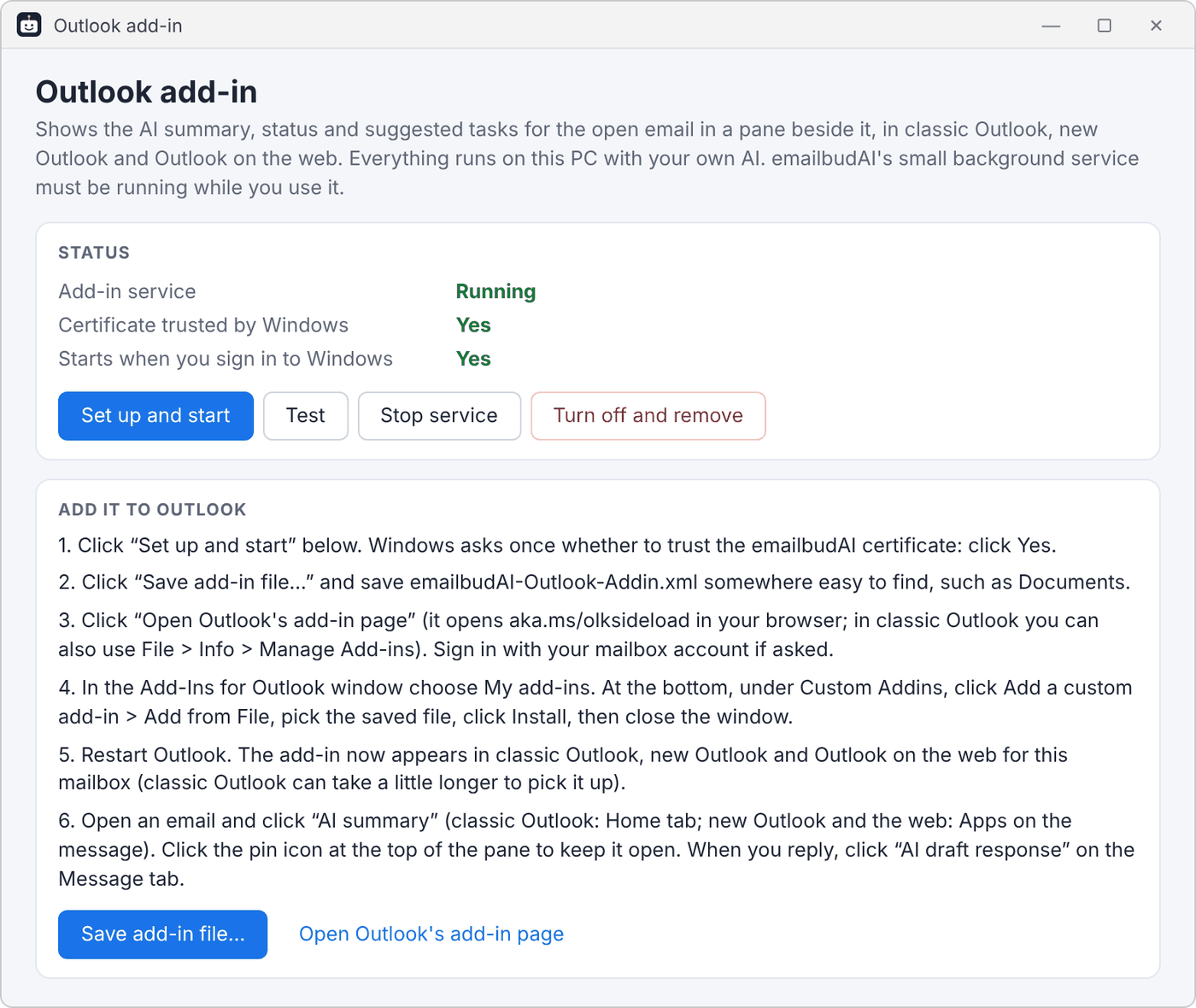
In emailbudAI choose More > Outlook add-in… and click Set up and start. Windows asks once whether to trust the emailbudAI Local CA certificate: click Yes. It only covers https://localhost on this PC, which is where the pane is served from, so your email never leaves your PC.
Step 2: save the add-in file
In the same window, click Save add-in file… and save emailbudAI-Outlook-Addin.xml to Documents.
Step 3: open Outlook's Add-Ins window
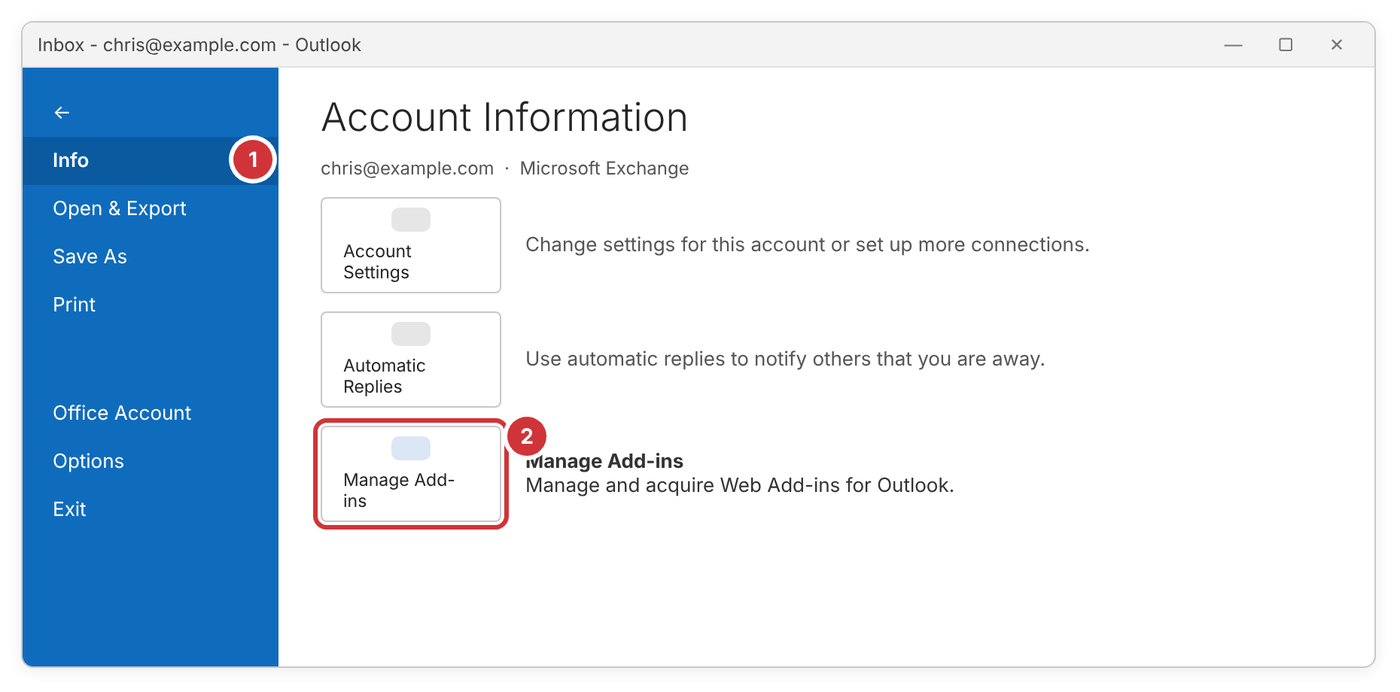
- Classic Outlook: File > Info > Manage Add-ins.
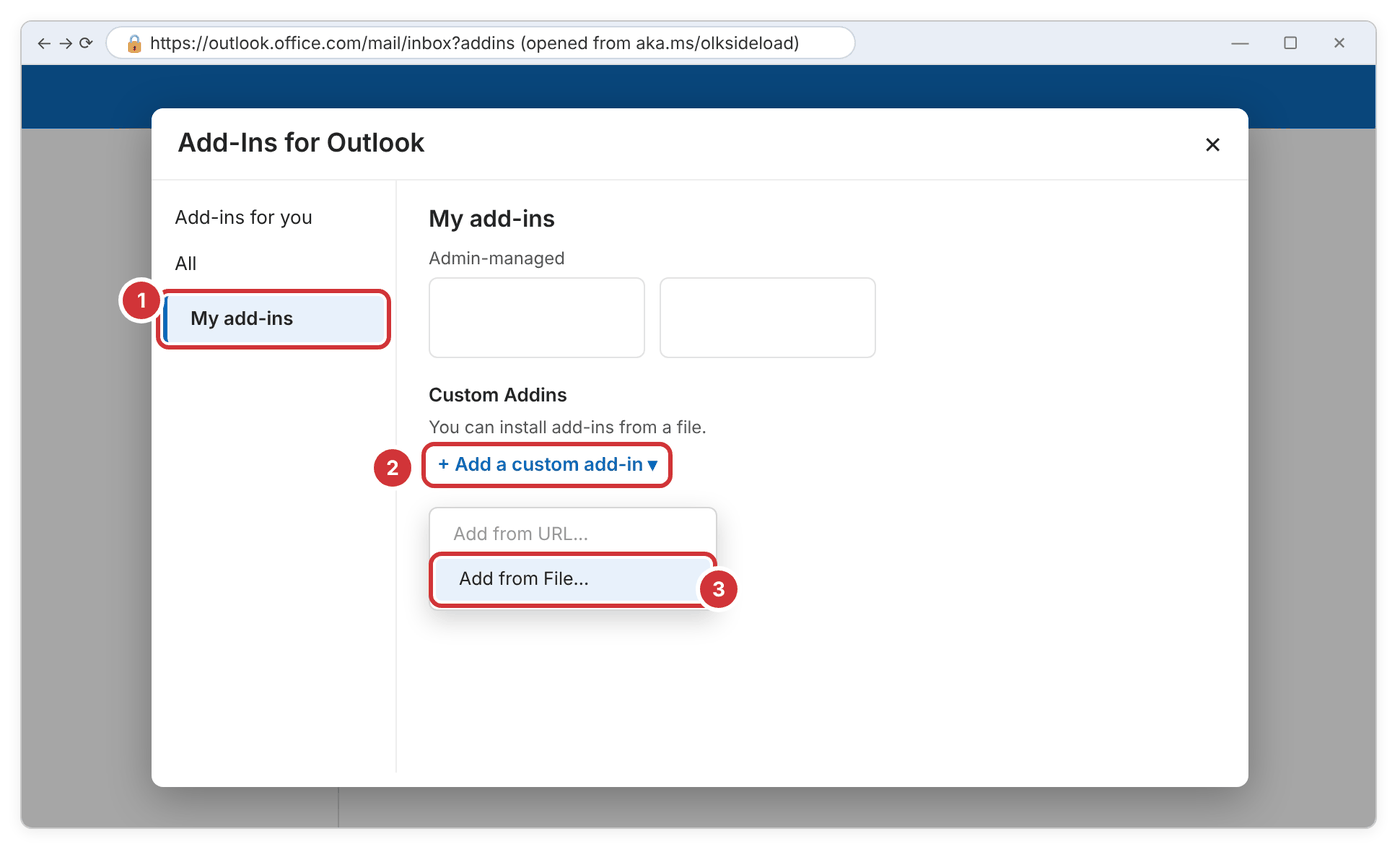
- New Outlook or the web: click Open Outlook's add-in page in emailbudAI, or go to aka.ms/olksideload in Edge or Chrome.
Step 4: add the file
- Choose My add-ins on the left.
- Scroll to Custom Addins and click Add a custom add-in, then Add from File…
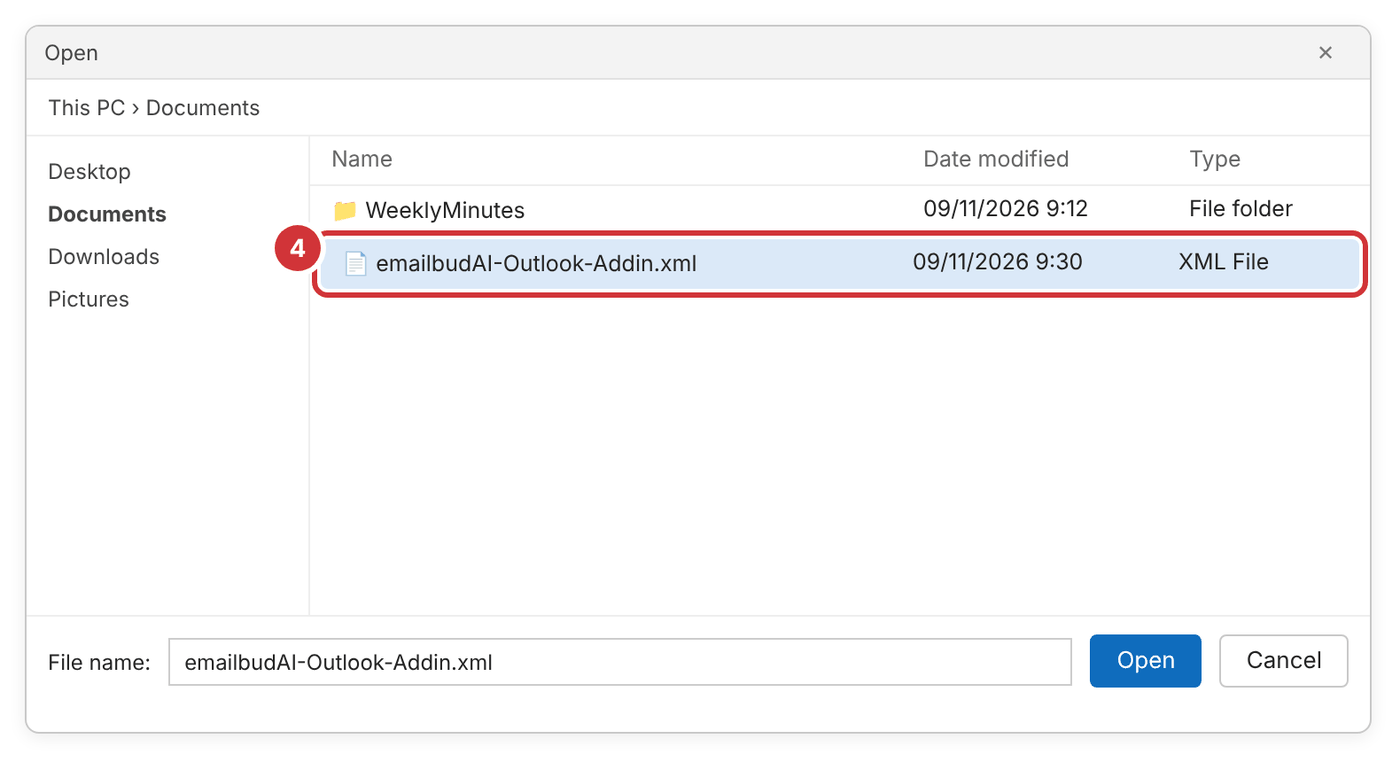
- Pick the file you saved and click Open.
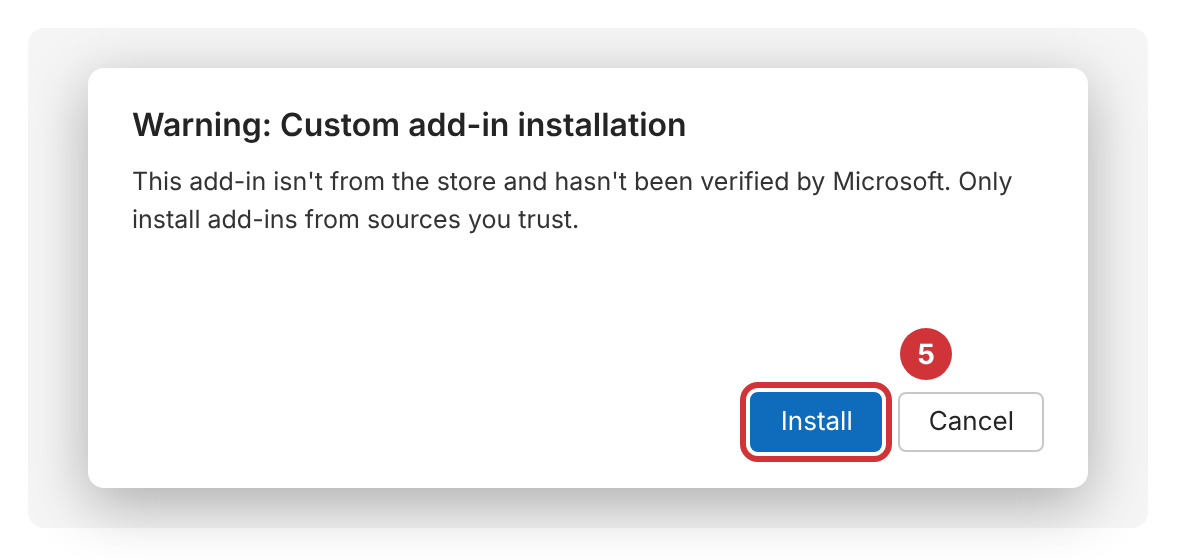
- Outlook warns that it isn't from the store: click Install. It's your own emailbudAI on this PC.
Step 5: restart Outlook
Close and reopen Outlook (in a browser, refresh the page). Classic Outlook can take a little while to pick up a new add-in; emailbudAI shows a Windows notification as soon as it arrives, so you don't need to keep checking.
That's it. Next: using emailbudAI inside Outlook.