The emailbudAI blog
Short, illustrated how-tos for every part of emailbudAI, from installing to the Outlook add-in. For the full detail, see the user guide.
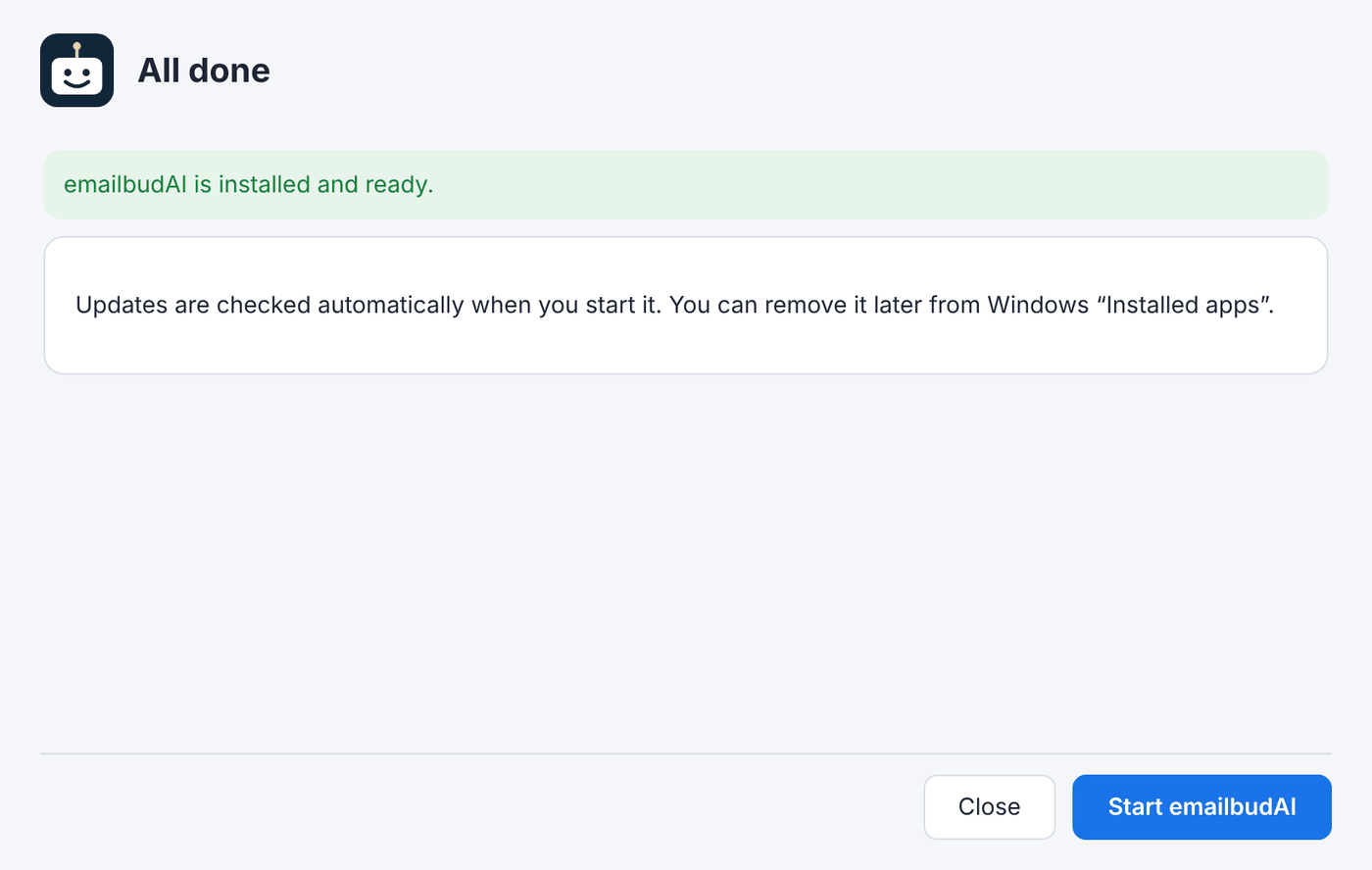 Getting startedGetting started: install emailbudAI and connect your mailFrom download to your first summary: the PC check, choosing an AI model, signing in with your invite code and connecting Outlook, Microsoft 365 or Gmail.
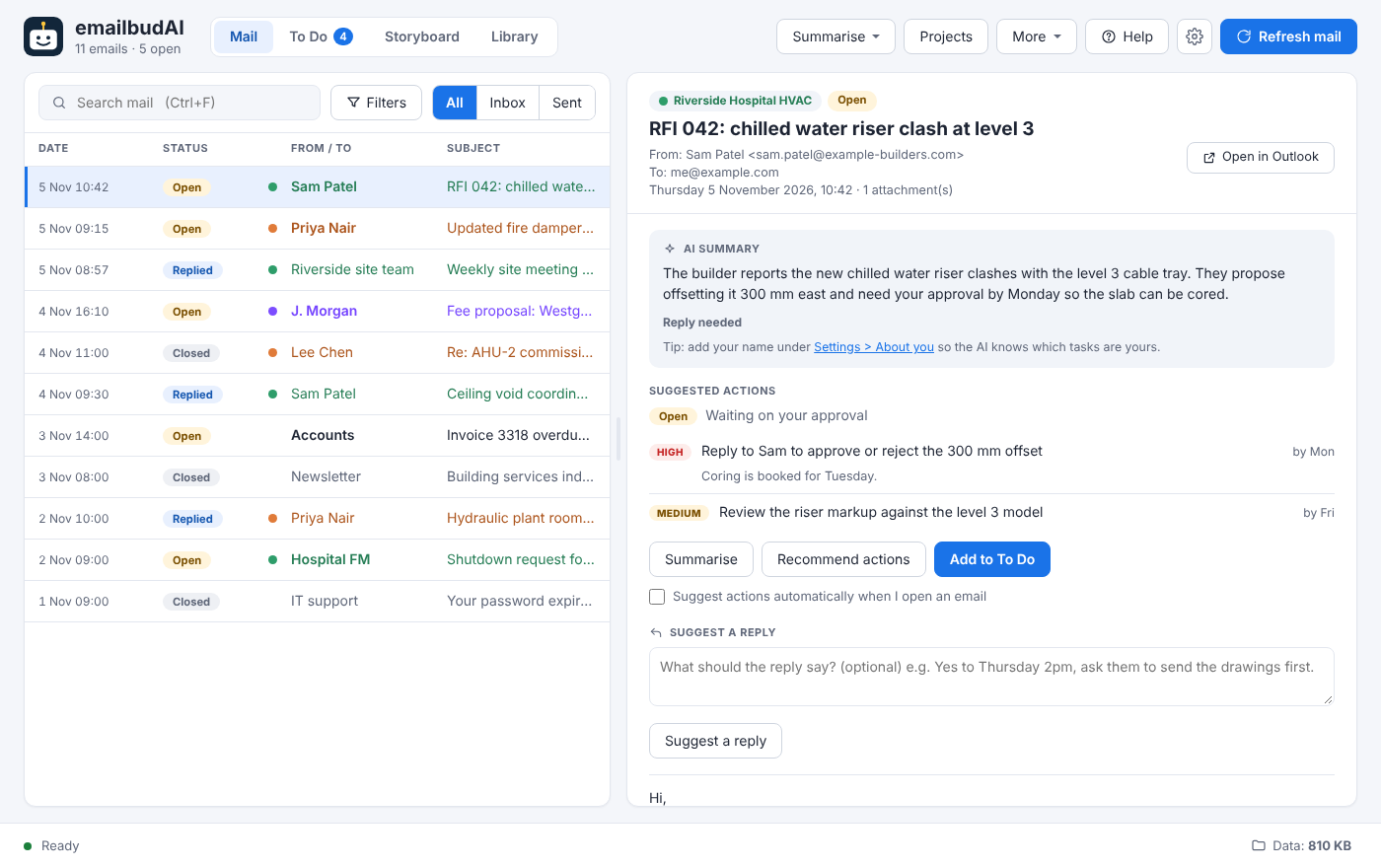 Read lessRead less: AI summaries and Open, Replied, ClosedEvery email summarised in a couple of sentences, written to you, with a status worked out from your Sent mail so you can see at a glance what still needs you.
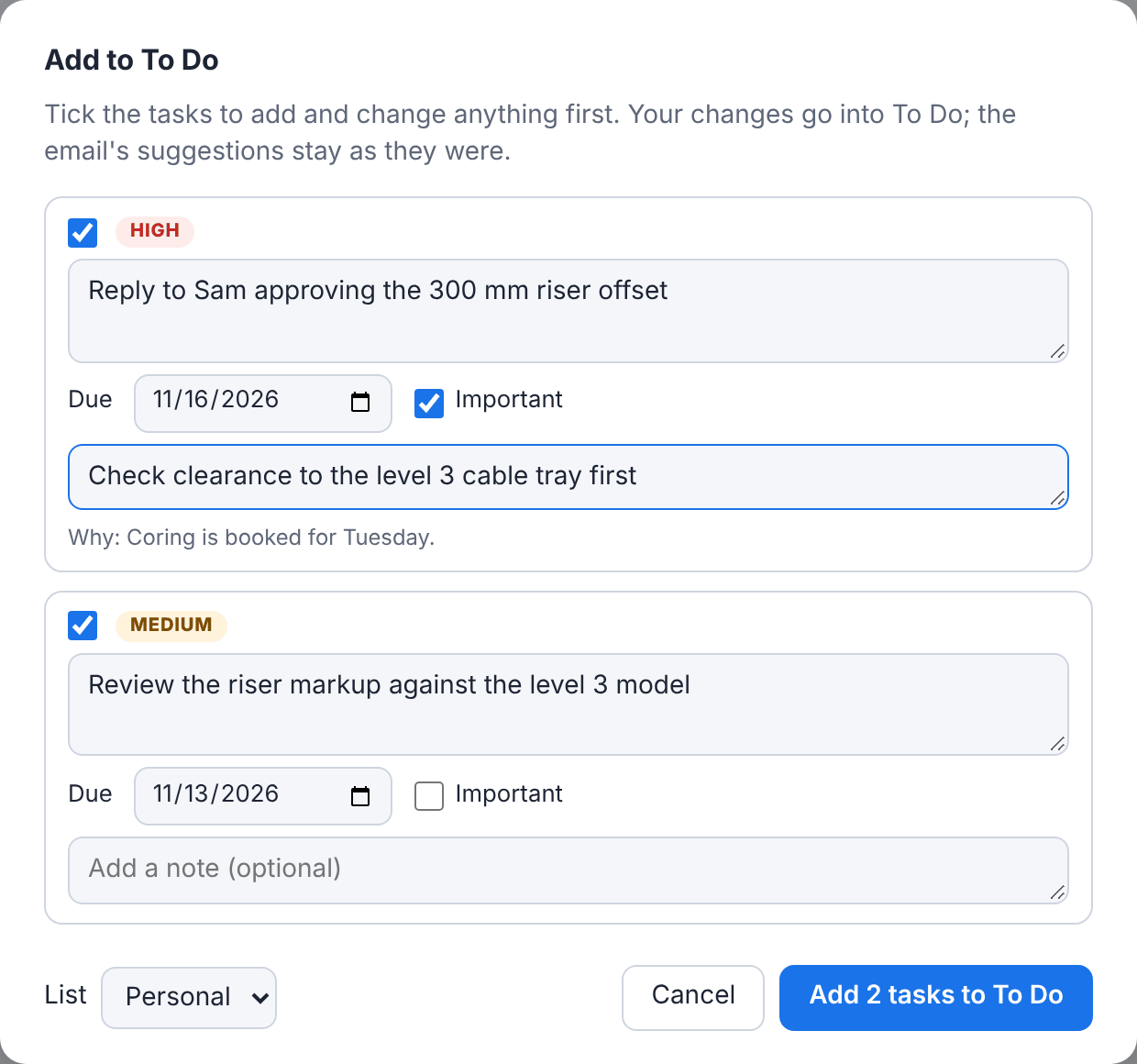 Read lessTurn emails into tasks: suggested actions and To DoLet the AI pick out what you need to do, with due dates, check the wording, and add it to To Do in one click. Syncs with Microsoft To Do and Outlook Tasks.
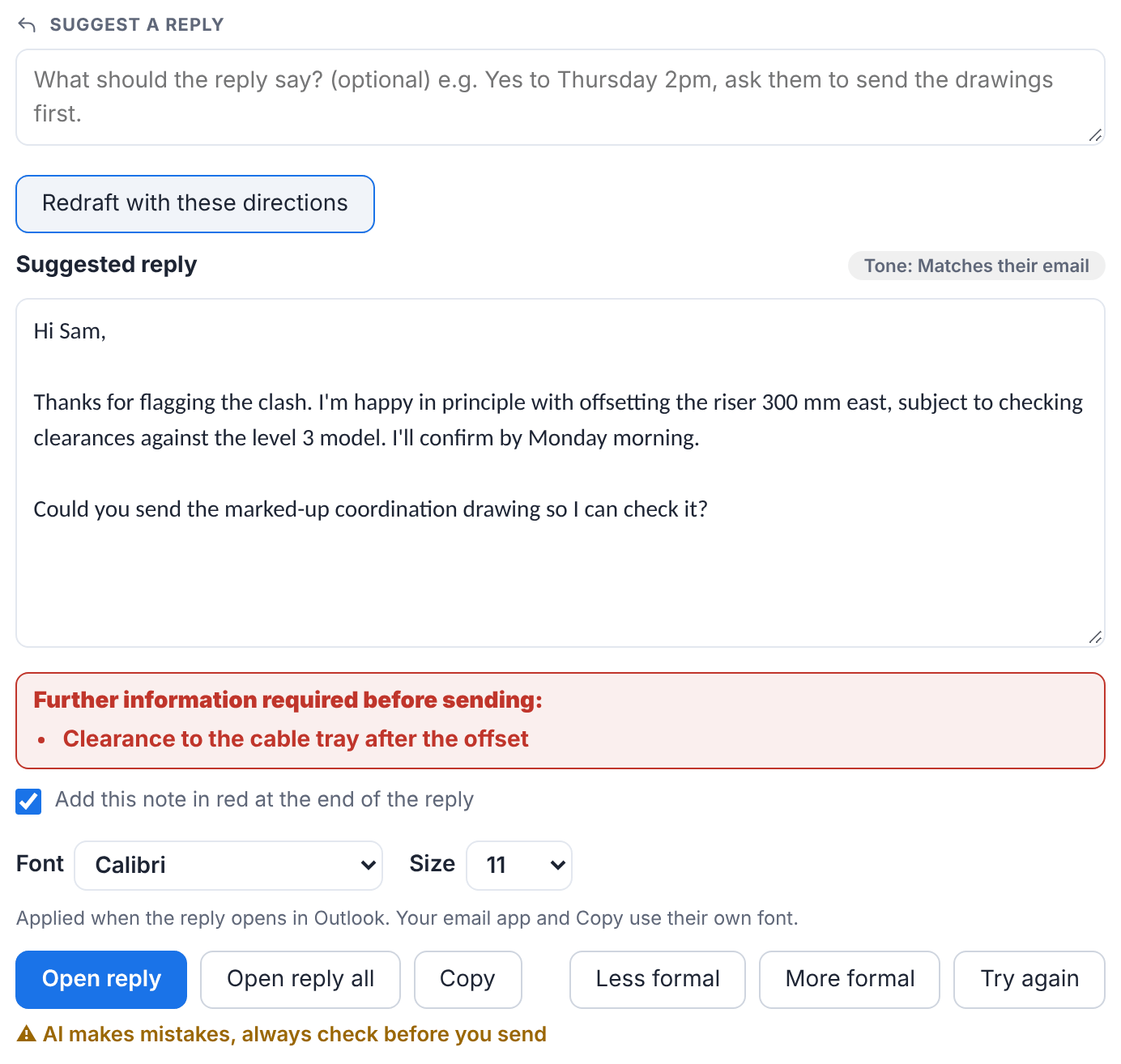 Read lessSuggested replies in your own toneDraft a reply with your own AI, adjust the tone, and open it in Outlook ready to send. Missing details are flagged in red, never invented.
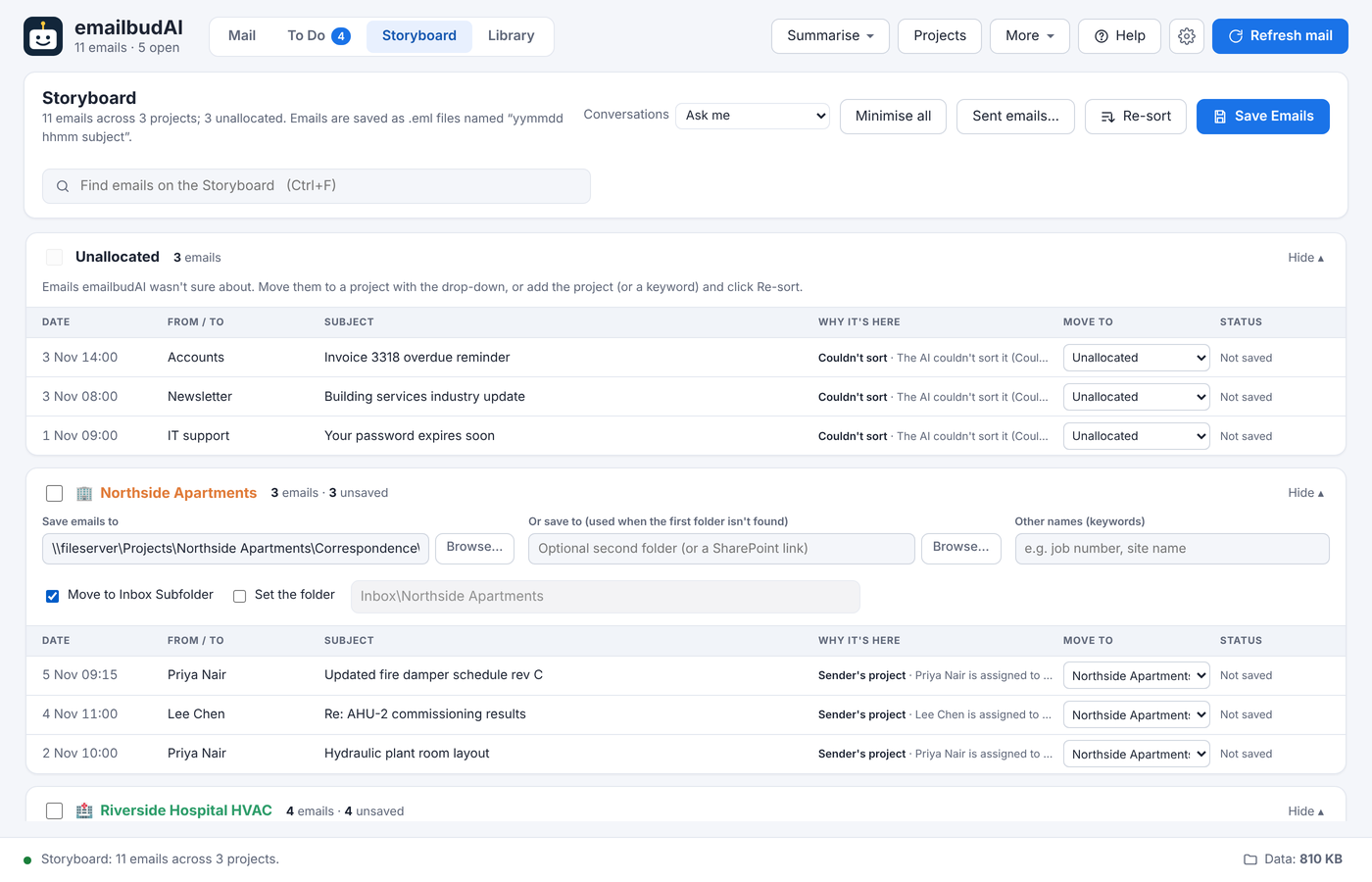 File everythingFile every email to its project with the StoryboardThe Storyboard sorts your email into projects, saves each one to the project folder with its attachments, files whole conversations and catches your sent mail too.
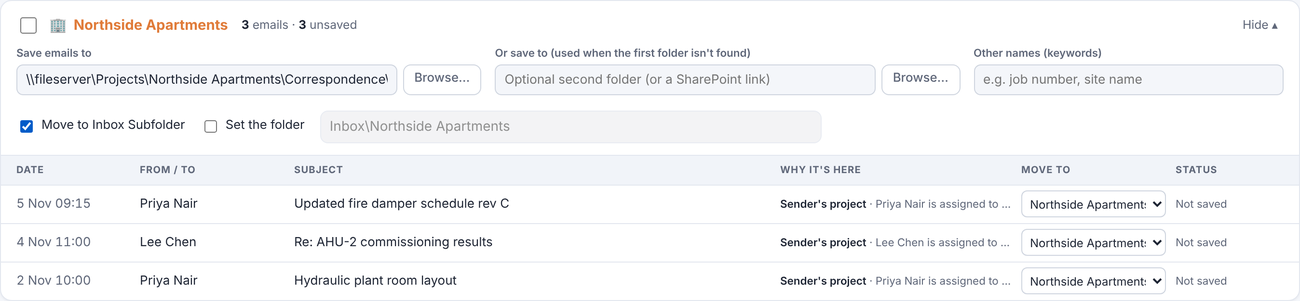 File everythingClear your Inbox as you fileTick Move to Inbox Subfolder on a project and every email you save leaves the Inbox for that project's Outlook folder. Only saved emails move.
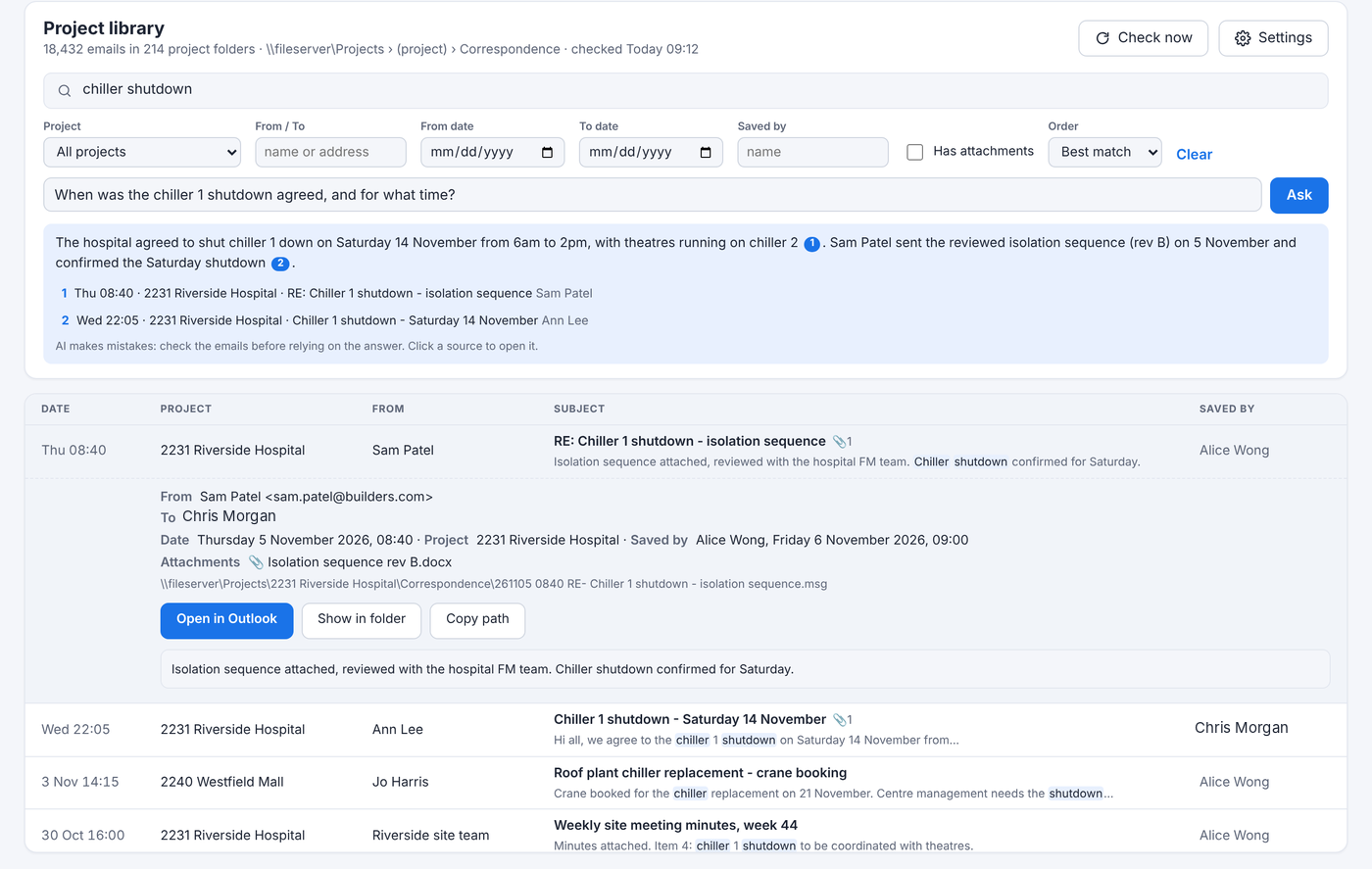 Find anythingFind anything in your team's filed emailThe Library searches every email anyone has saved to the project folders, including the text in attachments, and answers questions with numbered sources.
PDFWeekly minutes
AutomateWeekly PDF minutes and the schedulerLet emailbudAI download, summarise and turn new mail into tasks in the background, and build a PDF of the week's minutes per project. Coming next: a weekly report for the whole project team.
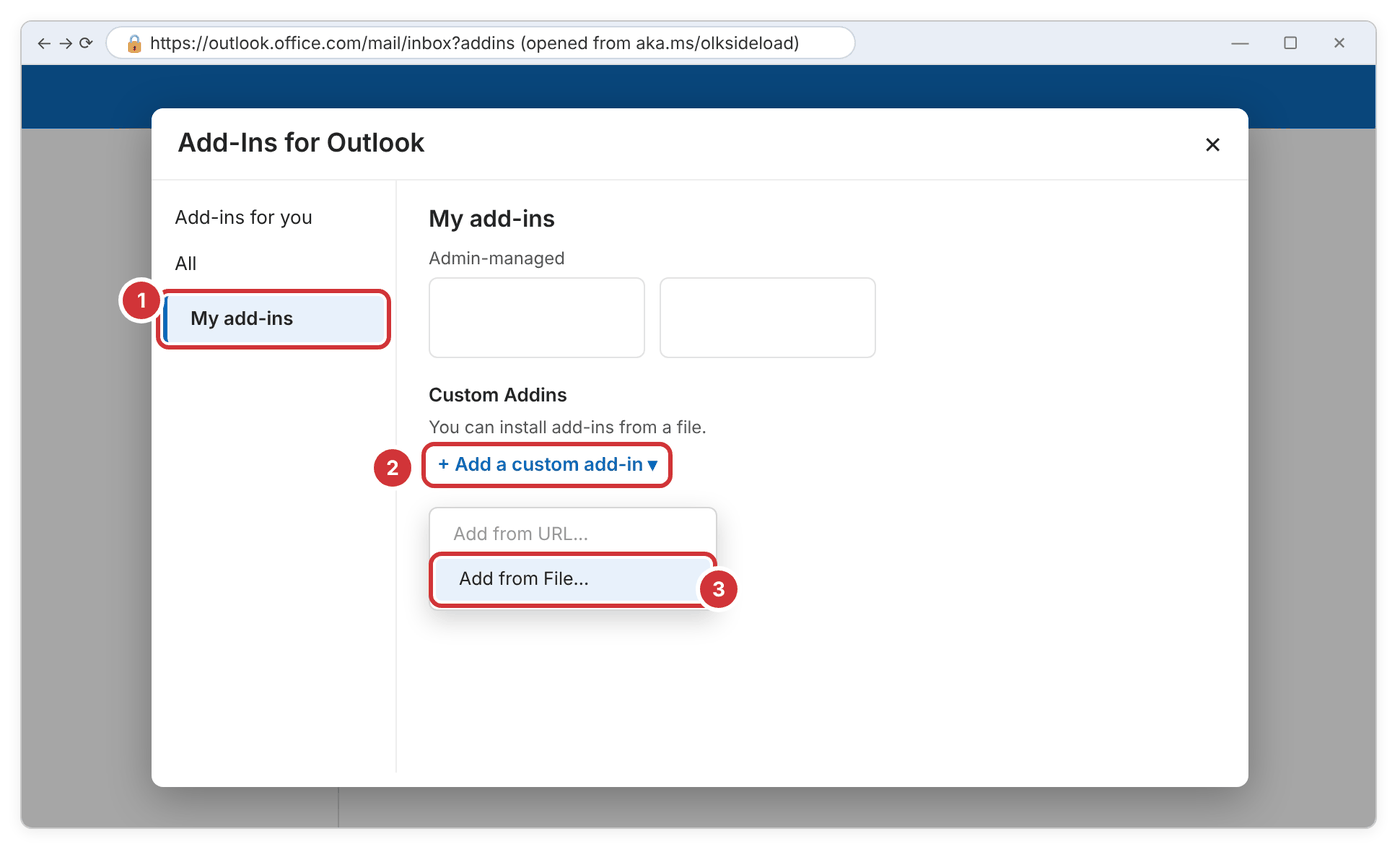 Outlook add-inAdd emailbudAI to Outlook in about two minutesThe add-in isn't in Microsoft's store yet, so you add it by hand once. It's pretty straightforward: start the service, save the file, add it in Outlook.
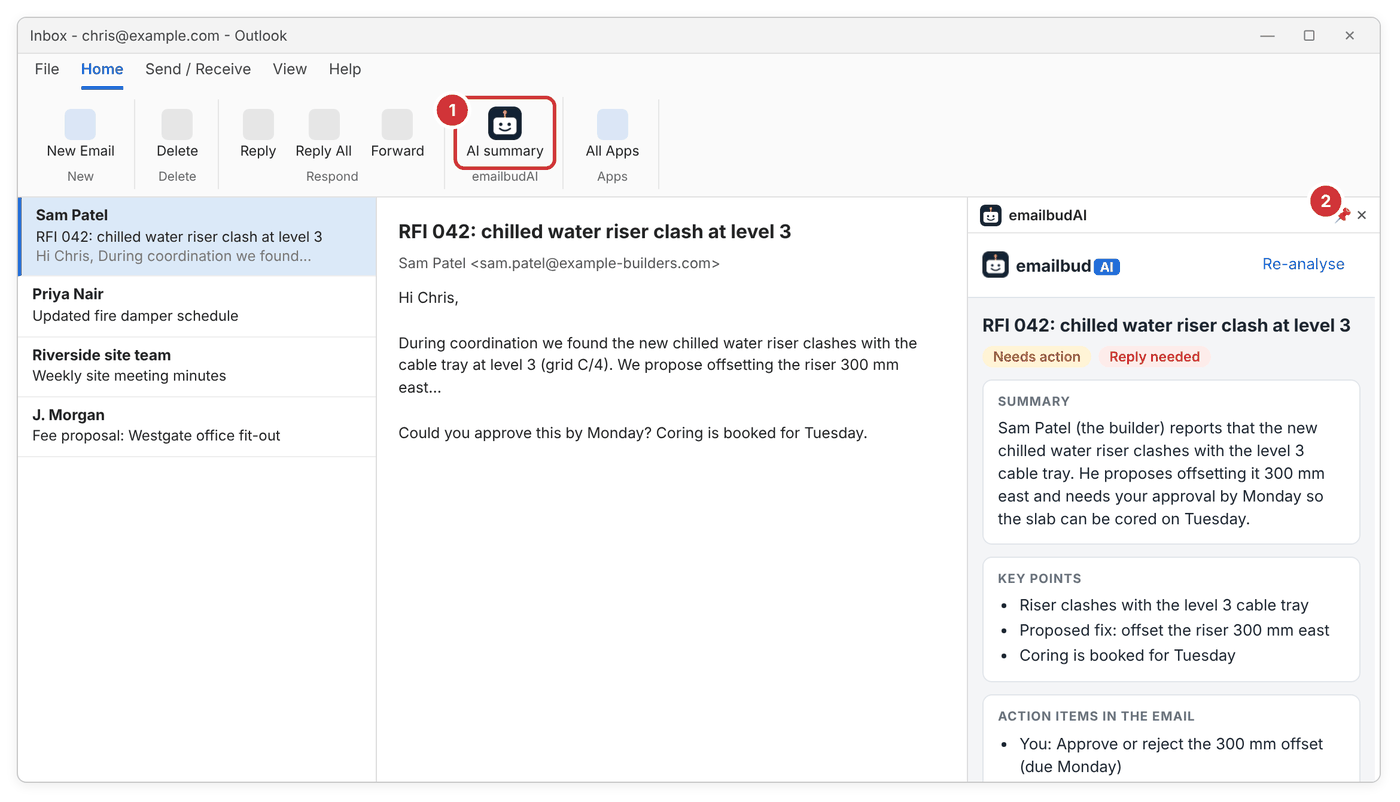 Outlook add-inUsing emailbudAI inside OutlookThe summary, your tasks and AI reply drafts beside each email in classic Outlook, new Outlook and Outlook on the web, plus a To Do pane and a reply reviewer.
⚙Settings & help
Make it yoursSettings, starting with Windows, updates and getting helpTune what the AI knows about you, how much mail to keep, the look and the tray; start with Windows; stay up to date; and ask for help in one click.