Outlook add-in
Using emailbudAI inside Outlook
The summary, your tasks and AI reply drafts beside each email in classic Outlook, new Outlook and Outlook on the web, plus a To Do pane and a reply reviewer.
With the add-in in place, you can work from Outlook and only open emailbudAI's own window when you want the Storyboard or the Library.
Open the pane
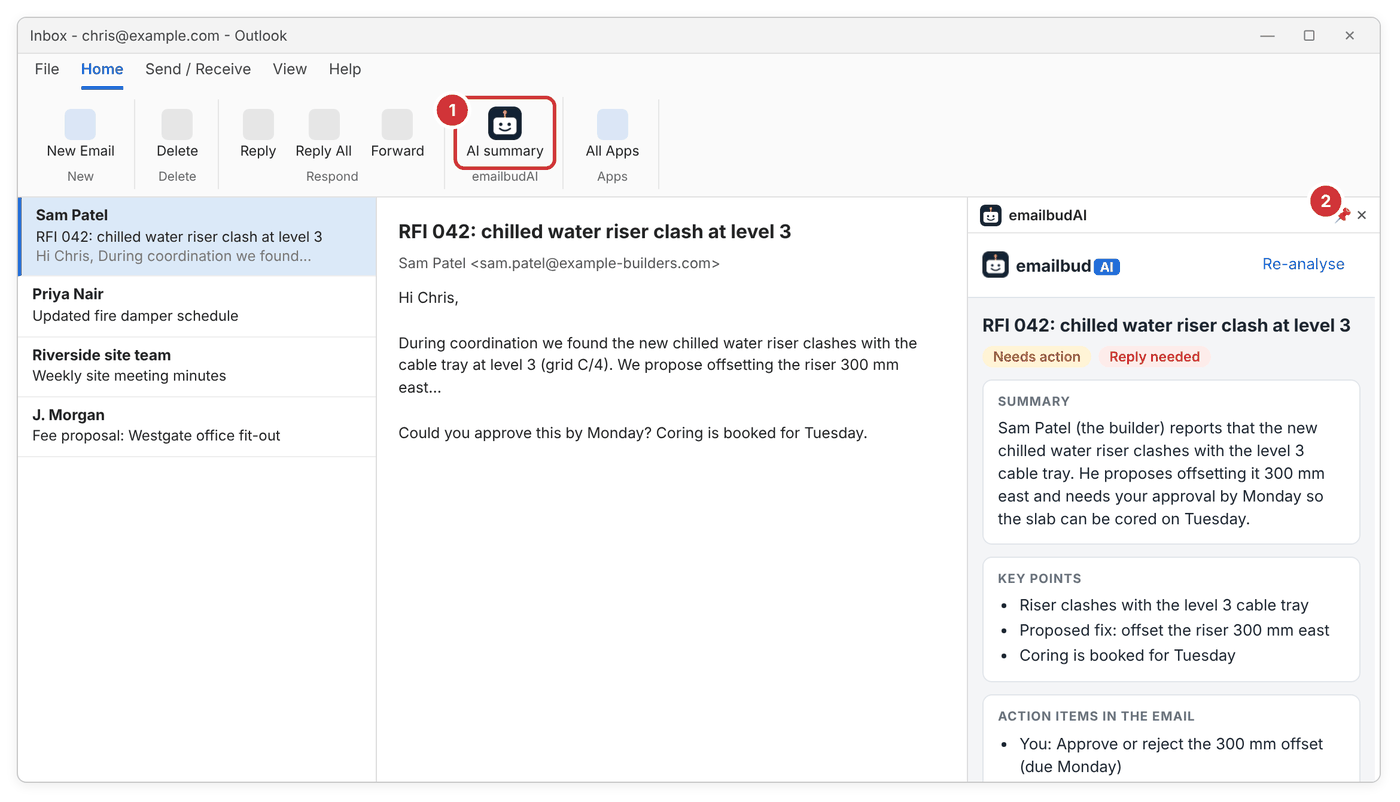
- Classic Outlook: select an email and click AI summary on the Home tab (or All Apps > emailbudAI).
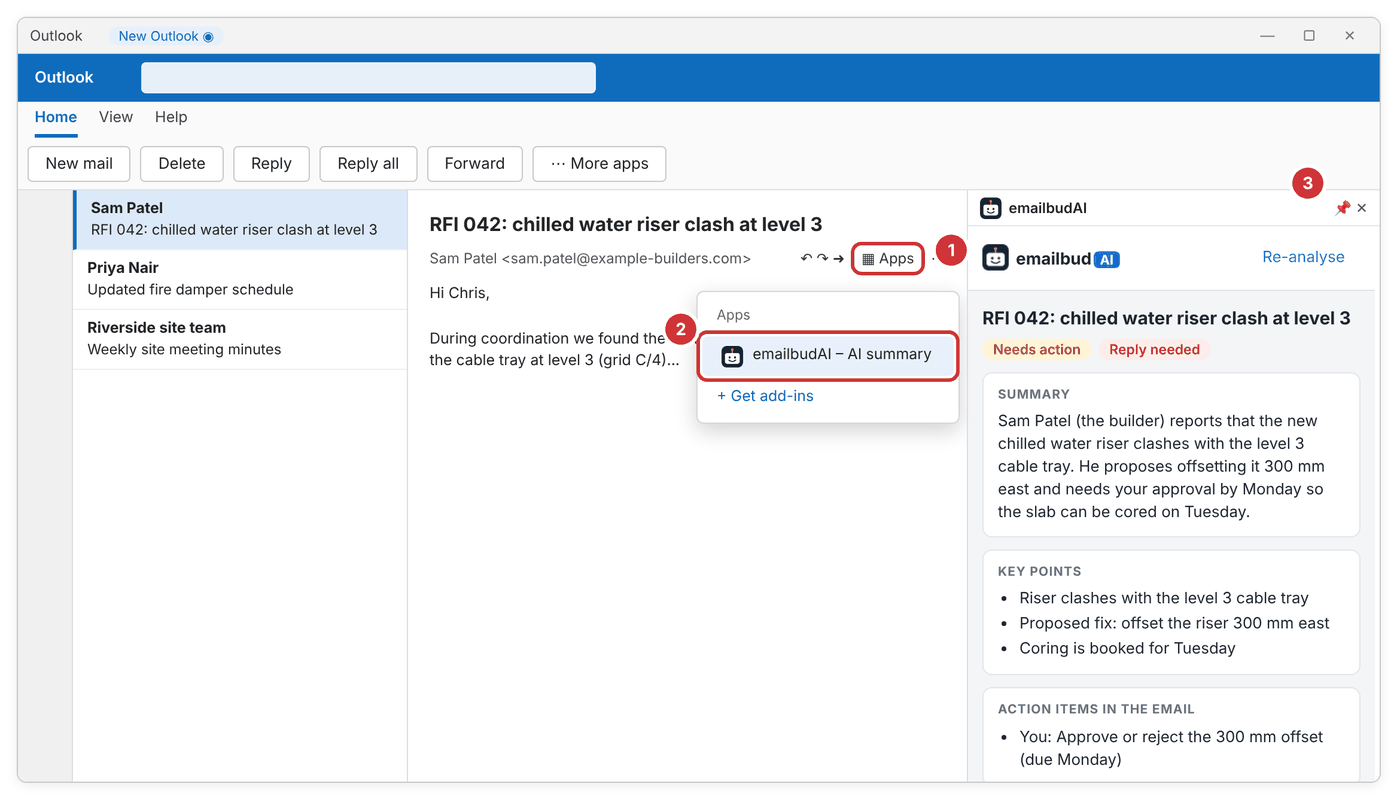
- New Outlook and the web: click Apps in the email's action bar and choose emailbudAI.
- Click the pin once so the pane stays open and follows every email you select.
Read and act
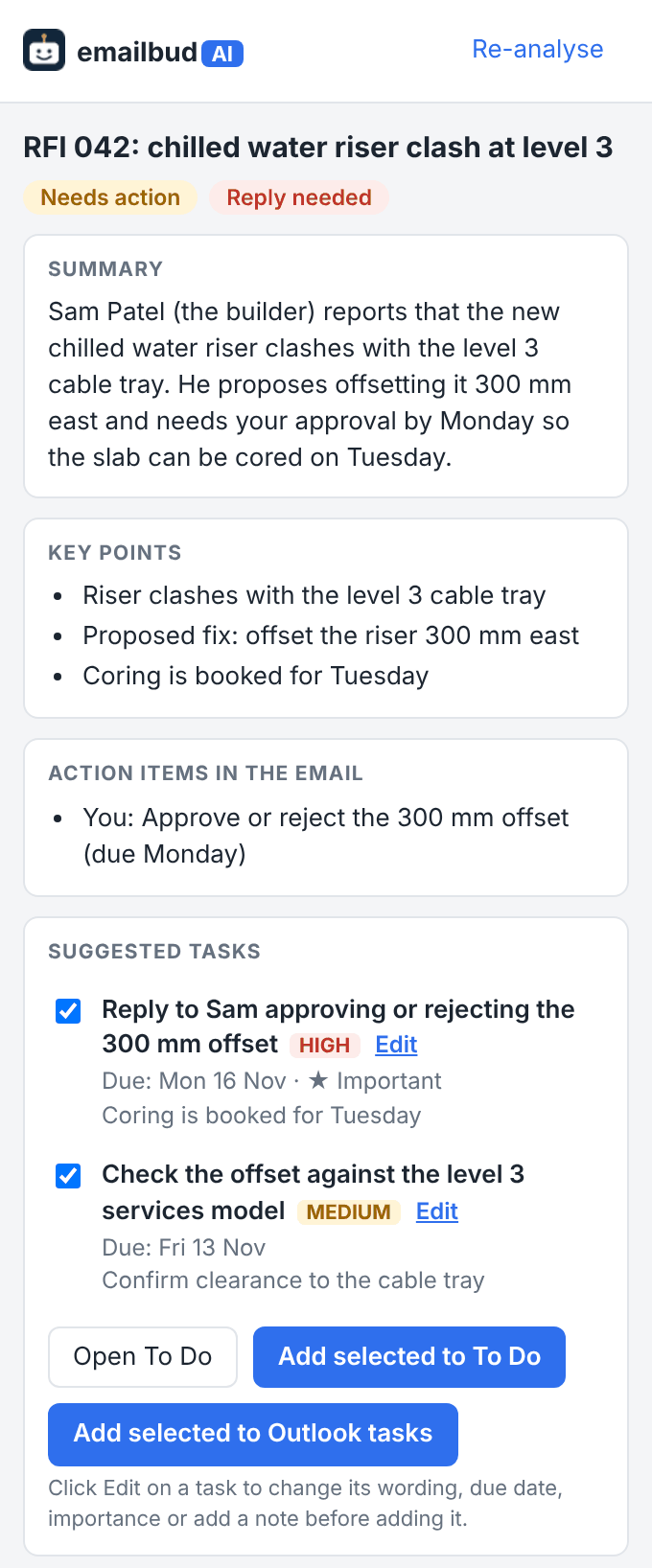
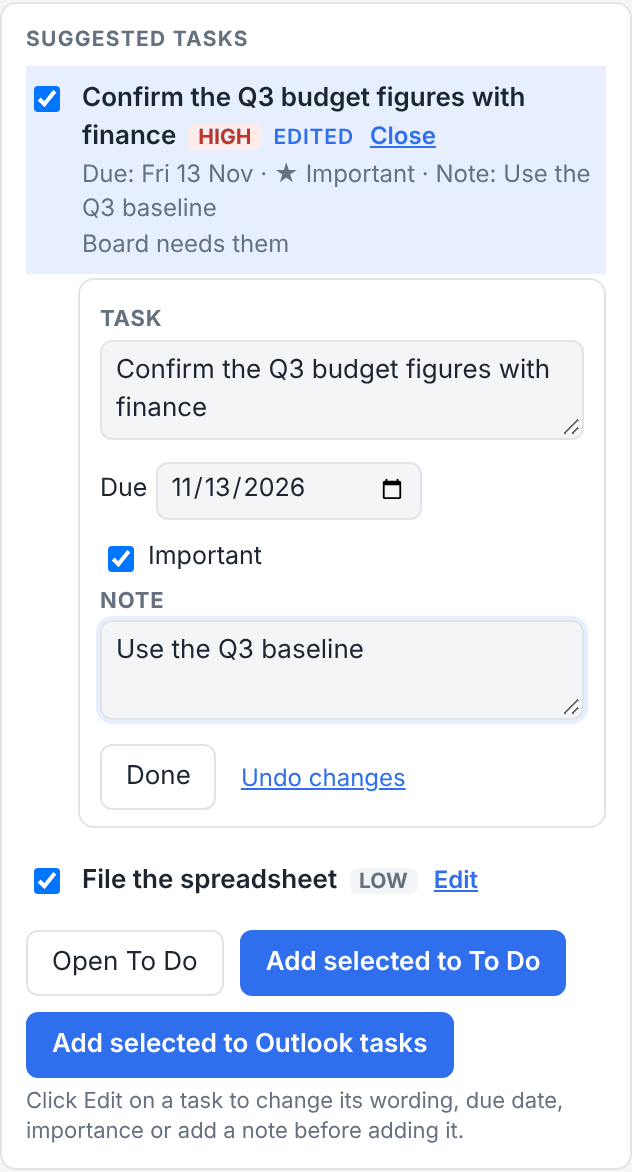
- Tick tasks and click Add selected to To Do, or Add selected to Outlook tasks.
- Edit changes a task's wording, due date, Important or note first.
- Re-analyse refreshes the summary.
Draft a reply
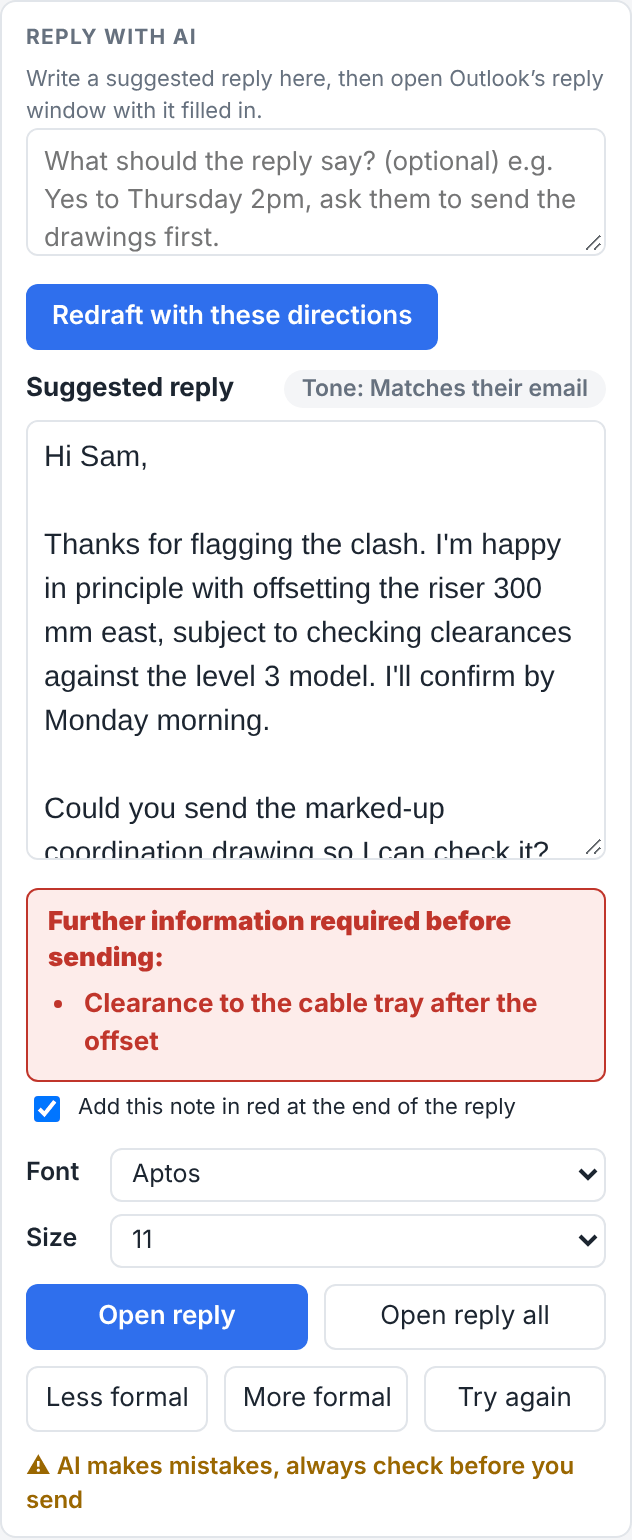
At the bottom of the pane, Reply with AI drafts a reply before you even click Reply. Adjust it with Less formal, More formal or Try again, then Open reply.
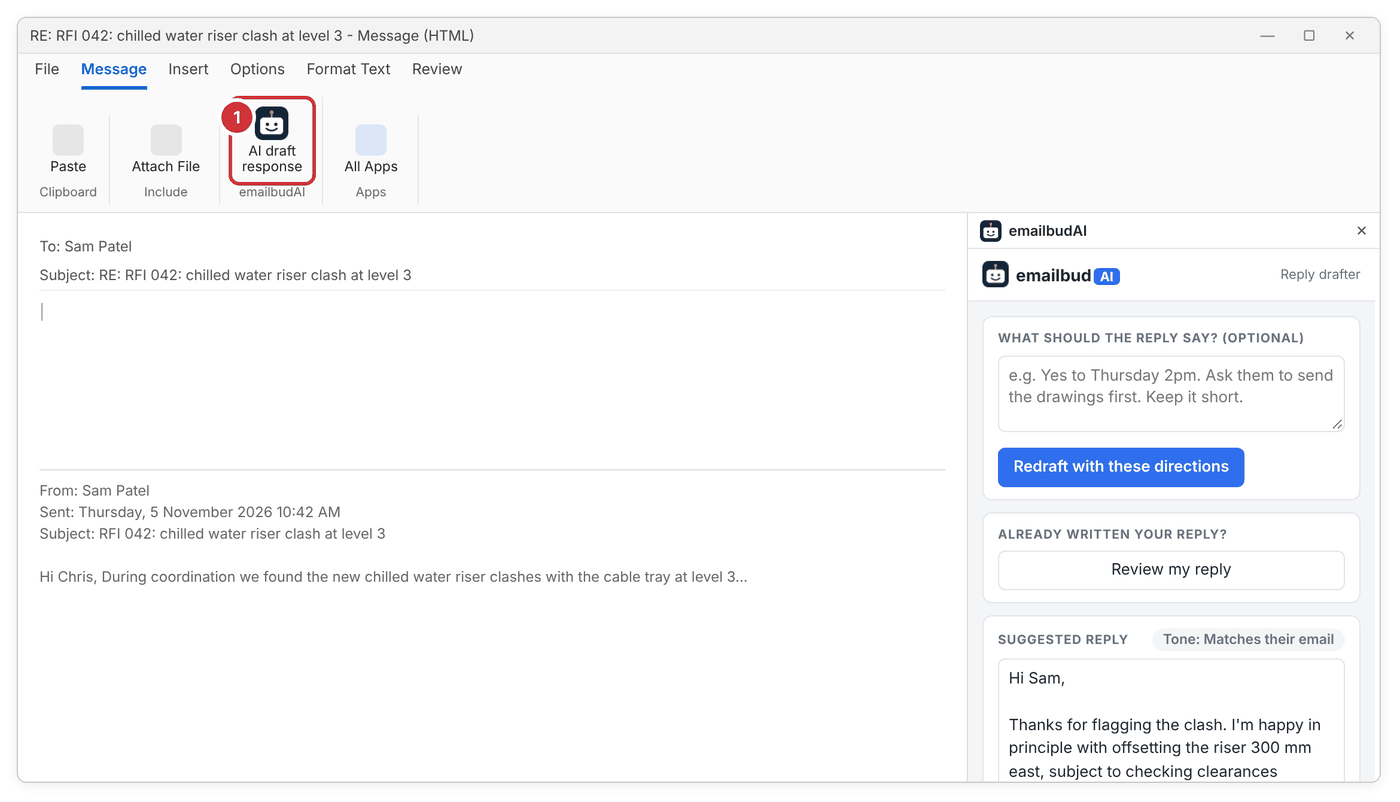
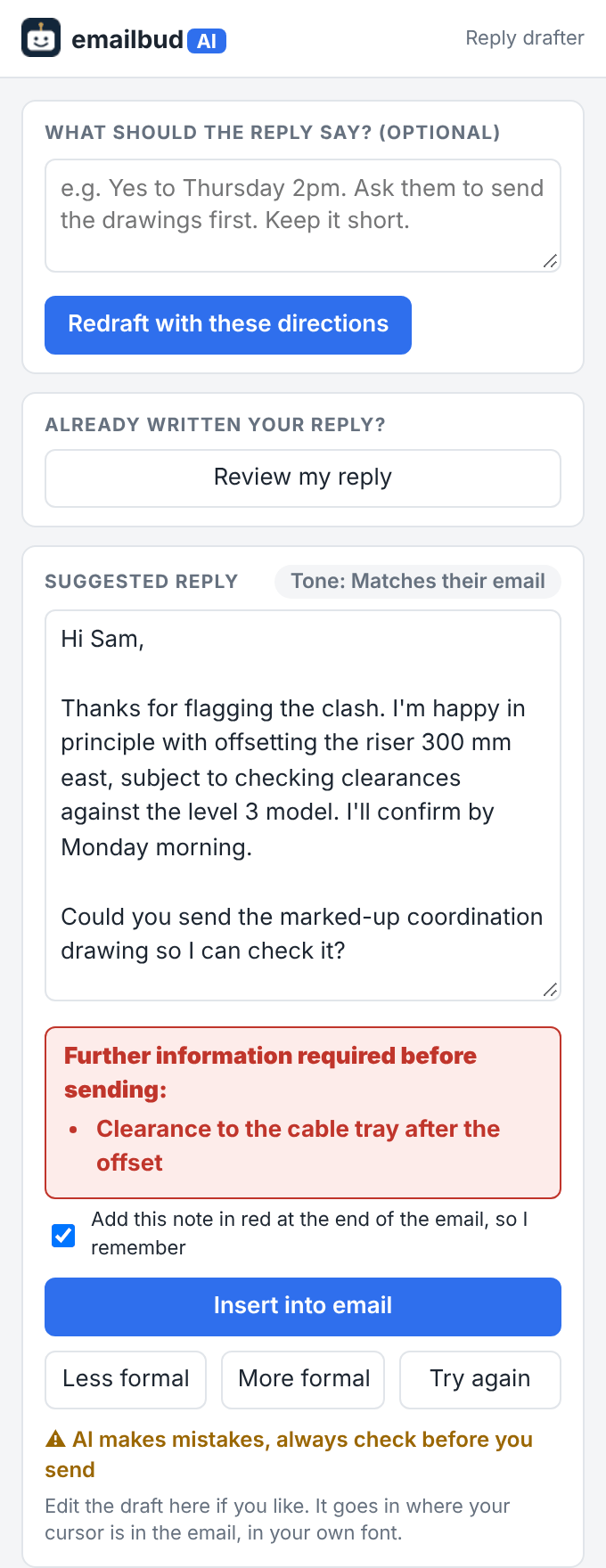
Already in a reply? Click AI draft response on the reply's Message tab. Insert into email types the draft where your cursor is, in your own font, and Review my reply reads what you wrote and suggests improvements.
Your To Do list beside your mail
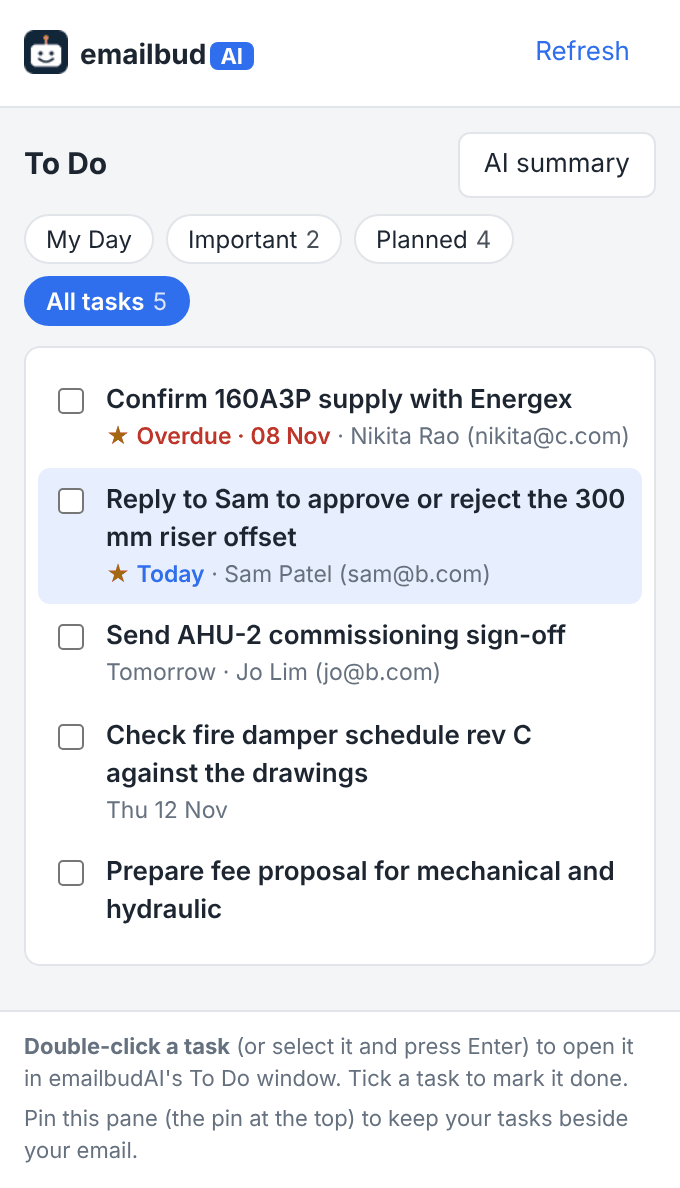
Click To Do in the emailbudAI group (or Open To Do in the pane). Switch between My Day, Important, Planned and All tasks, tick tasks off, or double-click one to open it in emailbudAI.
Make it easy to read
Every pane has a View button (two A's): change the text size and font, hide sections you don't use, and drag sections taller or shorter.