Read less
Suggested replies in your own tone
Draft a reply with your own AI, adjust the tone, and open it in Outlook ready to send. Missing details are flagged in red, never invented.
For the emails that just need a sensible answer, emailbudAI drafts one with the AI on your PC.
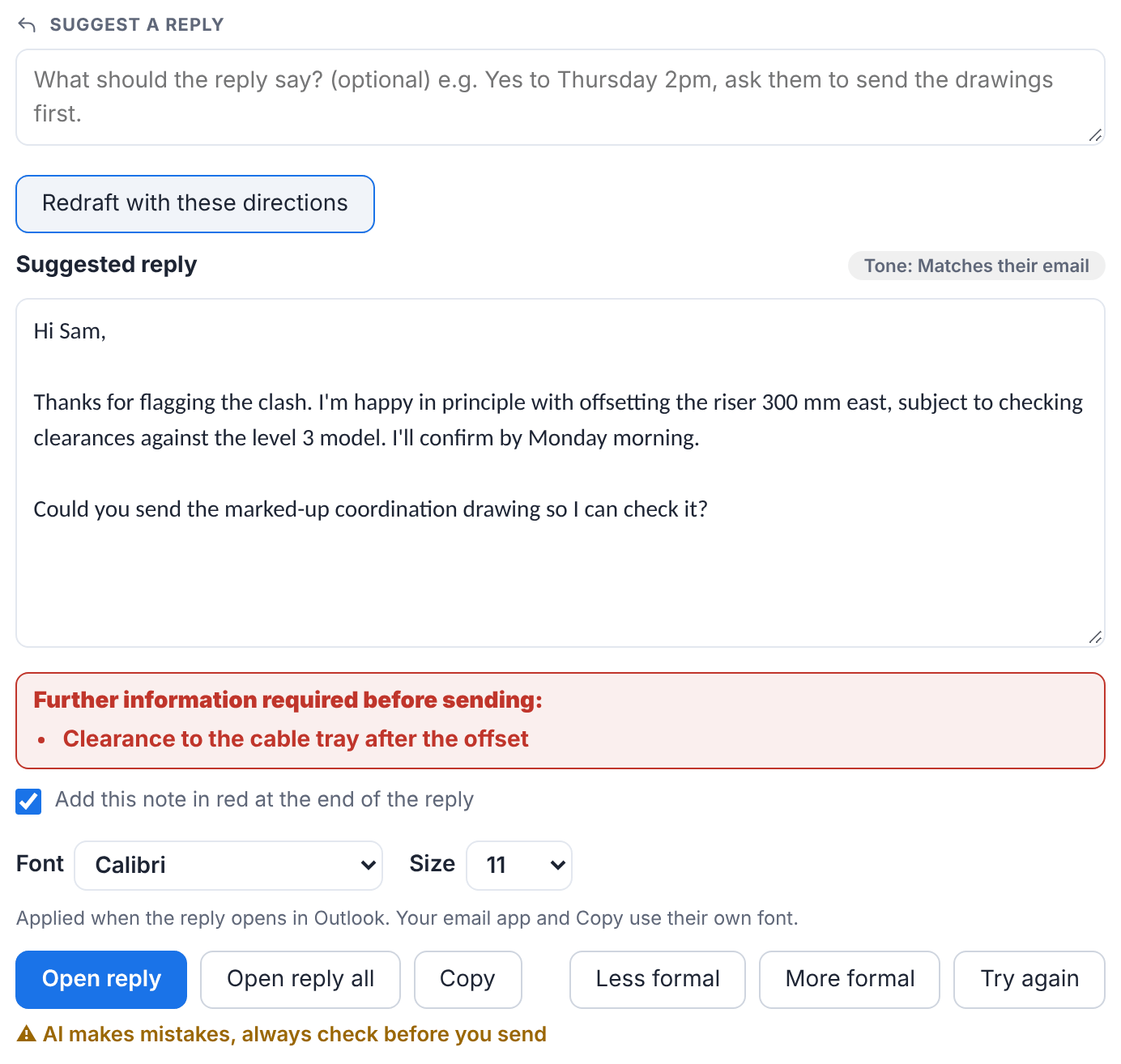
- Optionally type what the reply should say, for example Yes to Thursday 2pm, ask them to send the drawings first.
- Click Suggest a reply. A local model can take up to a minute.
- Use Less formal, More formal or Try again, and edit the text as you like.
- Choose the Font and Size (remembered next time).
- Click Open reply or Open reply all. Classic Outlook opens its own reply with the draft at the top, above your signature.
What the AI is told
- Reply in the email's language, as you, in your role.
- Stop after the last sentence: your Outlook signature adds the sign-off.
- Never invent facts, dates, prices or promises. A missing detail becomes a [placeholder].
- If a proper answer needs specialist or project knowledge, list those subjects. They're shown in red and, if you leave Add this note ticked, added in red at the end of the reply so you remember to fill them in.
The same drafting is in Outlook itself: see Using emailbudAI inside Outlook.