File everything
File every email to its project with the Storyboard
The Storyboard sorts your email into projects, saves each one to the project folder with its attachments, files whole conversations and catches your sent mail too.
Filing email into project folders is the job everyone means to do and nobody has time for. The Storyboard does the sorting for you; you check it, fix anything it got wrong and click Save Emails.
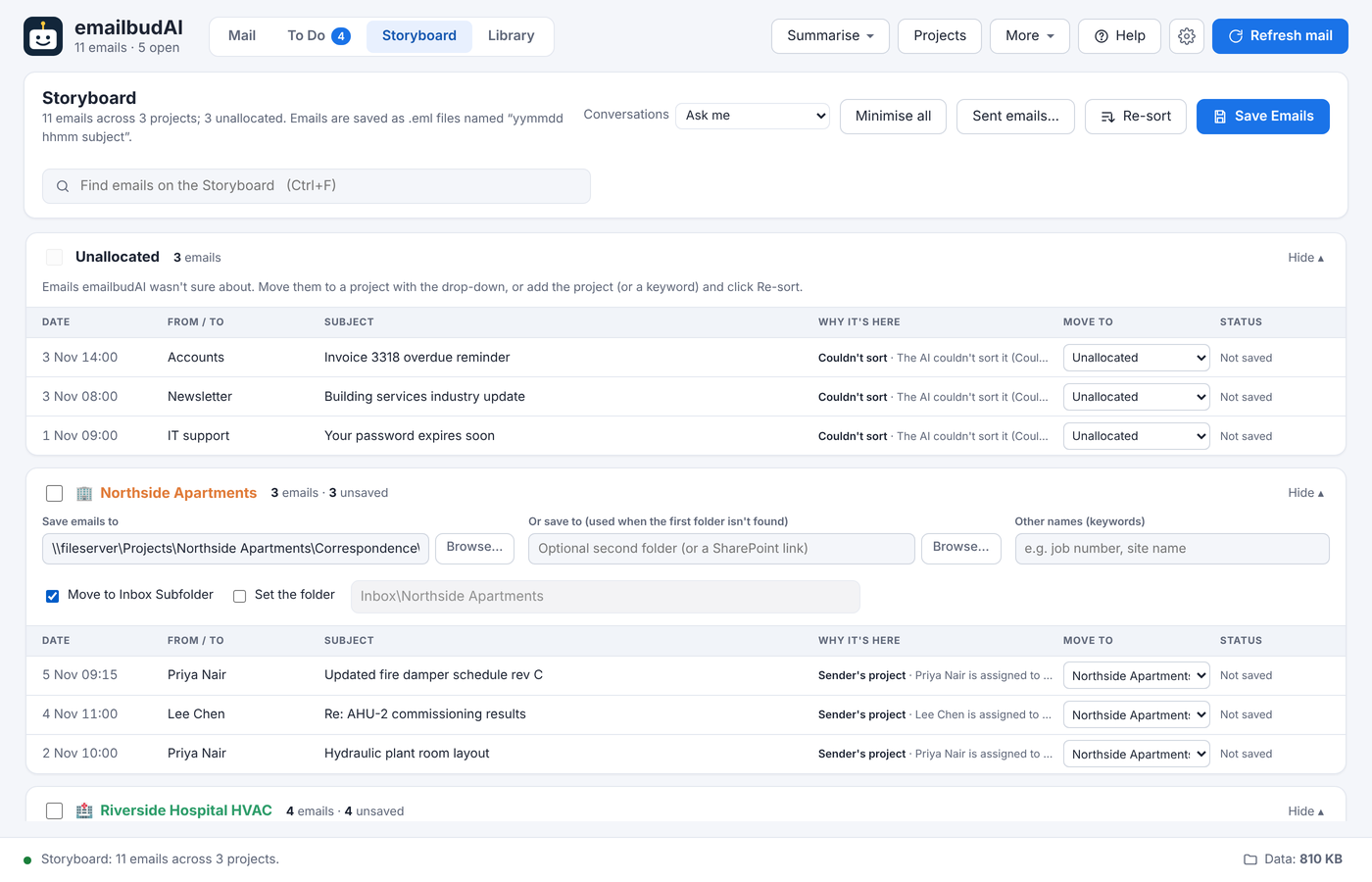
1. Set up your projects
Click Projects and create one per job. Add the email addresses or whole domains that belong to it, and any other names it goes by, such as a job number or site name (Riverside, P2231). Give it a colour and icon so it stands out in the email list.
2. Let it sort
Open the Storyboard tab. Each email is placed by these rules, in order:
| # | Rule | Example |
|---|---|---|
| 1 | The subject names a project | “P2231 riser clash” goes to Riverside, whoever sent it. |
| 2 | The email text names one project | Sam usually works on Riverside, but this email is about Northside. |
| 3 | The sender belongs to a project | Sam Patel is assigned to Riverside. |
| 4 | Otherwise the AI reads it | “Weekly site meeting minutes” about the level 3 riser. |
Anything the AI isn't sure about waits in Unallocated, and the Why it's here column tells you which rule placed each email.
3. Fix anything by dragging
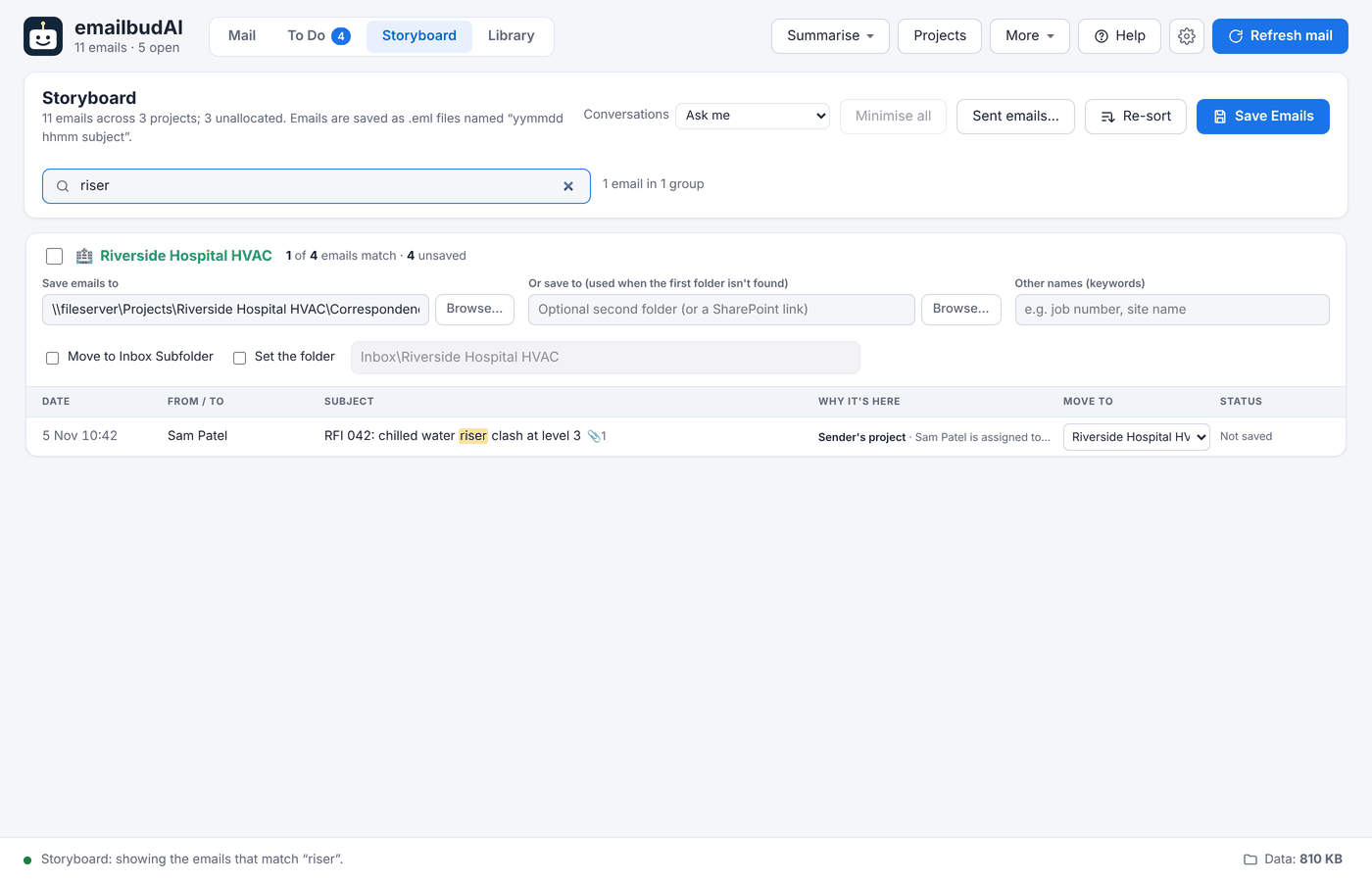
Click an email, Ctrl-click or Shift-click to select more, and drag them onto a project. Your choices stick on every re-sort. Press Ctrl+F to find emails on the board by subject, sender, job number or keyword.
4. Save Emails
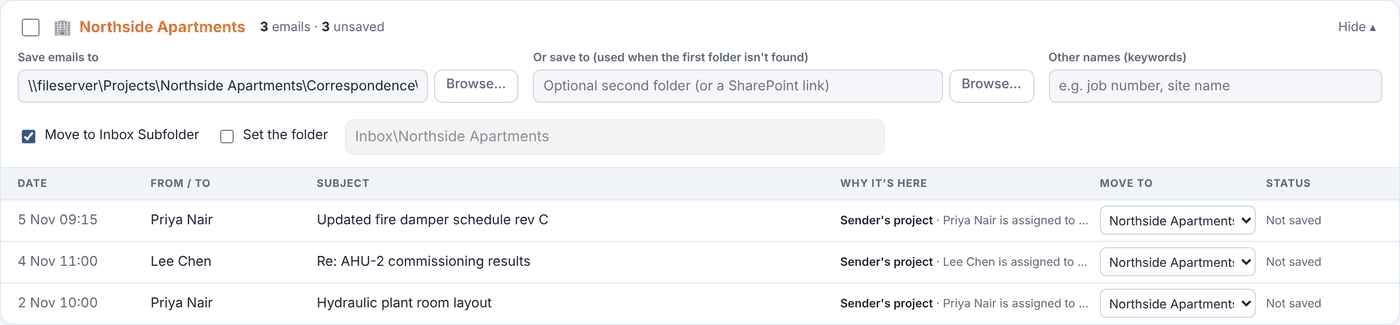
Give each project a Save emails to folder (a network folder such as \\fileserver\Projects\…, a local folder, or a SharePoint, OneDrive or Teams folder), tick the projects to save and click Save Emails. Each email is saved with its attachments: .msg from classic Outlook, .eml from Microsoft 365 and IMAP. Files are named yymmdd hhmm subject, and nothing is ever overwritten.
Whole conversations, and replies that follow
File one email and emailbudAI finds the rest of its conversation and offers to file it too: File all, Review… or Just this one. After that, new replies go straight to the same project.
Your sent mail
Click Sent emails… beside Re-sort:
- Save my sent emails automatically: sent emails emailbudAI is sure about are saved after each mail download.
- File on Send (new Outlook for Windows): when you click Send, emailbudAI says which project the email will be filed to, and you can change it before it goes.
Next: clear your Inbox as you file.