File everything
Clear your Inbox as you file
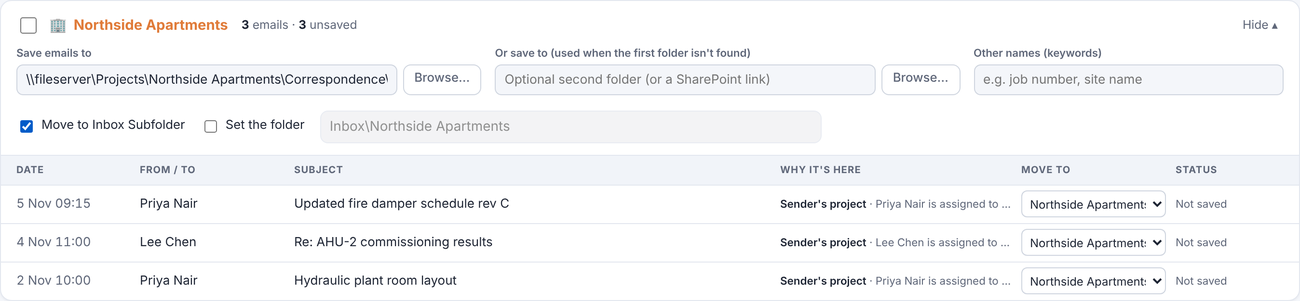
Tick Move to Inbox Subfolder on a project and every email you save leaves the Inbox for that project's Outlook folder. Only saved emails move.
Once an email is safely in the project folder, it doesn't need to sit in your Inbox. emailbudAI can move it into an Outlook folder for the project at the same moment it saves it.
Turn it on
- On the Storyboard, find the project and tick Move to Inbox Subfolder under its save folders.
- Click Save Emails as usual.
- Each of the project's emails that is saved and still in your Inbox moves to the project's Outlook folder.
Which folder?
emailbudAI uses, in this order:
- the folder you type in after ticking Set the folder, for example
Inbox\Projects\Riverside Hospital(missing folders are created); - otherwise a folder anywhere under your Inbox with the project's name;
- otherwise a new folder directly under the Inbox, named after the project.
The folder it used is written into the field, so you can always see where emails went. A small arrow after Saved shows a moved email; hover to see the folder.
Safe by design
- Only saved emails move: nothing leaves the Inbox before it's filed.
- Emails you've already put in another folder yourself stay where they are. Sent emails aren't moved.
- Move an email to a different project on the Storyboard and the next Save Emails moves it on, and tidies the old project folder (the old file is kept for 30 days, or in SharePoint's recycle bin).