Find anything
Find anything in your team's filed email
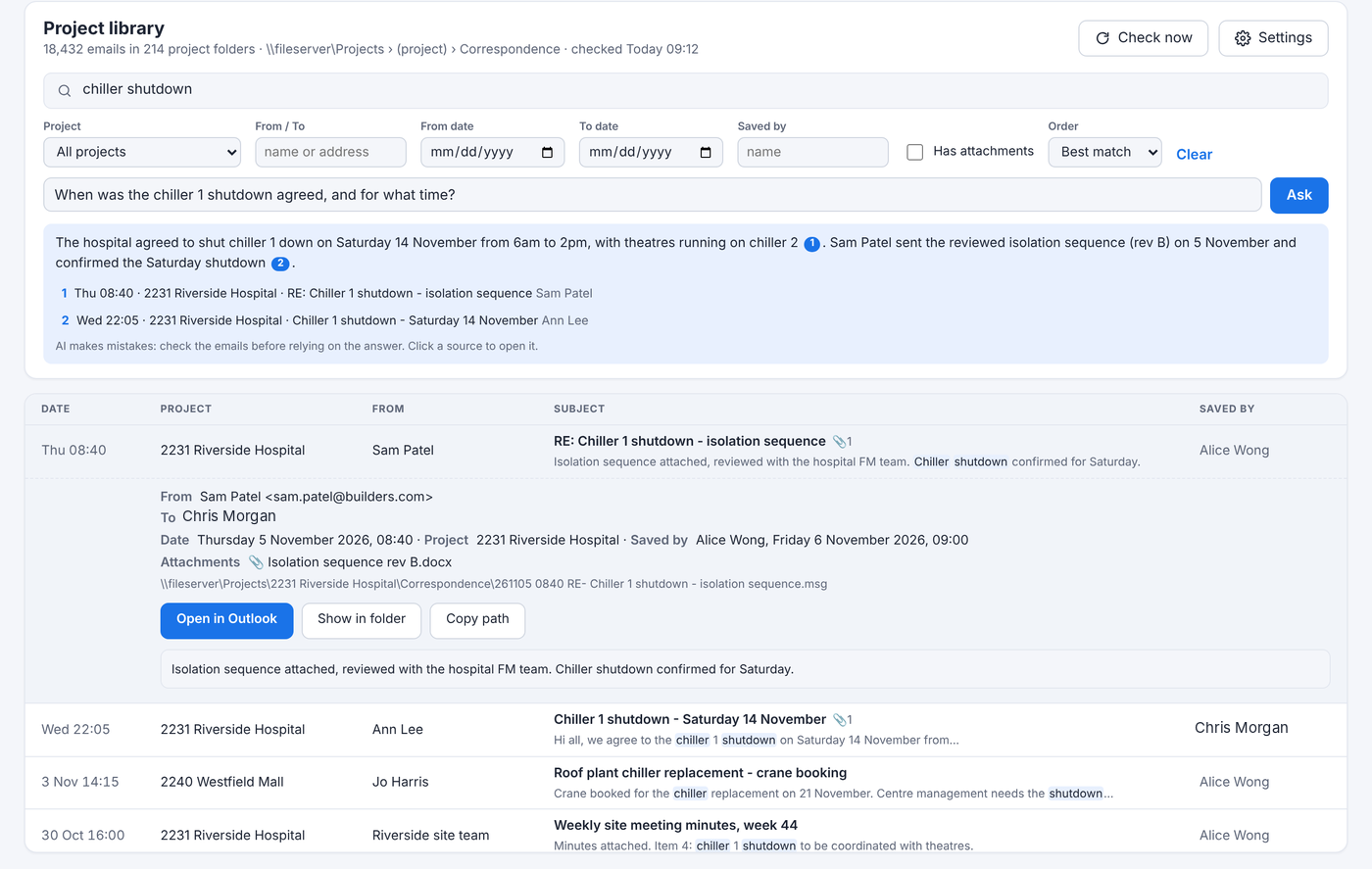
The Library searches every email anyone has saved to the project folders, including the text in attachments, and answers questions with numbered sources.
When everyone files to the same project folders, those folders become the team's memory. The Library tab makes that memory searchable, with no server to set up.
Set it up once
- Open the Library tab; the settings open the first time.
- Set the Project library folder, the folder that holds every project folder, for example
\\fileserver\Projects. - Set the Emails folder inside each project folder (for example
Correspondence\Emails). One person sets it and everyone shares it. - Choose which project folders this PC indexes: your projects, selected ones, or all of them.
- Click Save. emailbudAI reads the library in the background and checks for new emails every 5 minutes.
Search
- Results appear as you type, best matches first, with the words highlighted. Use quotes for an exact phrase:
"level 3 ceiling void". - The text inside PDF, Word, Excel and PowerPoint attachments is searched too.
- Filter by project, people, dates, Saved by, attachments, and Sent by me, Sent by my organisation or Received from outside.
- Open in Outlook opens the original email; Show in folder opens it in File Explorer.
Ask the AI
Type a question such as “When was the chiller 1 shutdown agreed, and for what time?” and click Ask. The AI answers from the saved emails only, and numbers each fact with its source so you can open the email and check it.
Who can see what
The library keeps its information inside the project folders themselves, so it follows your folder permissions: if someone can't open a project folder, they can't search its emails either. An email a colleague has already saved isn't saved twice: it shows Saved by and their name.